
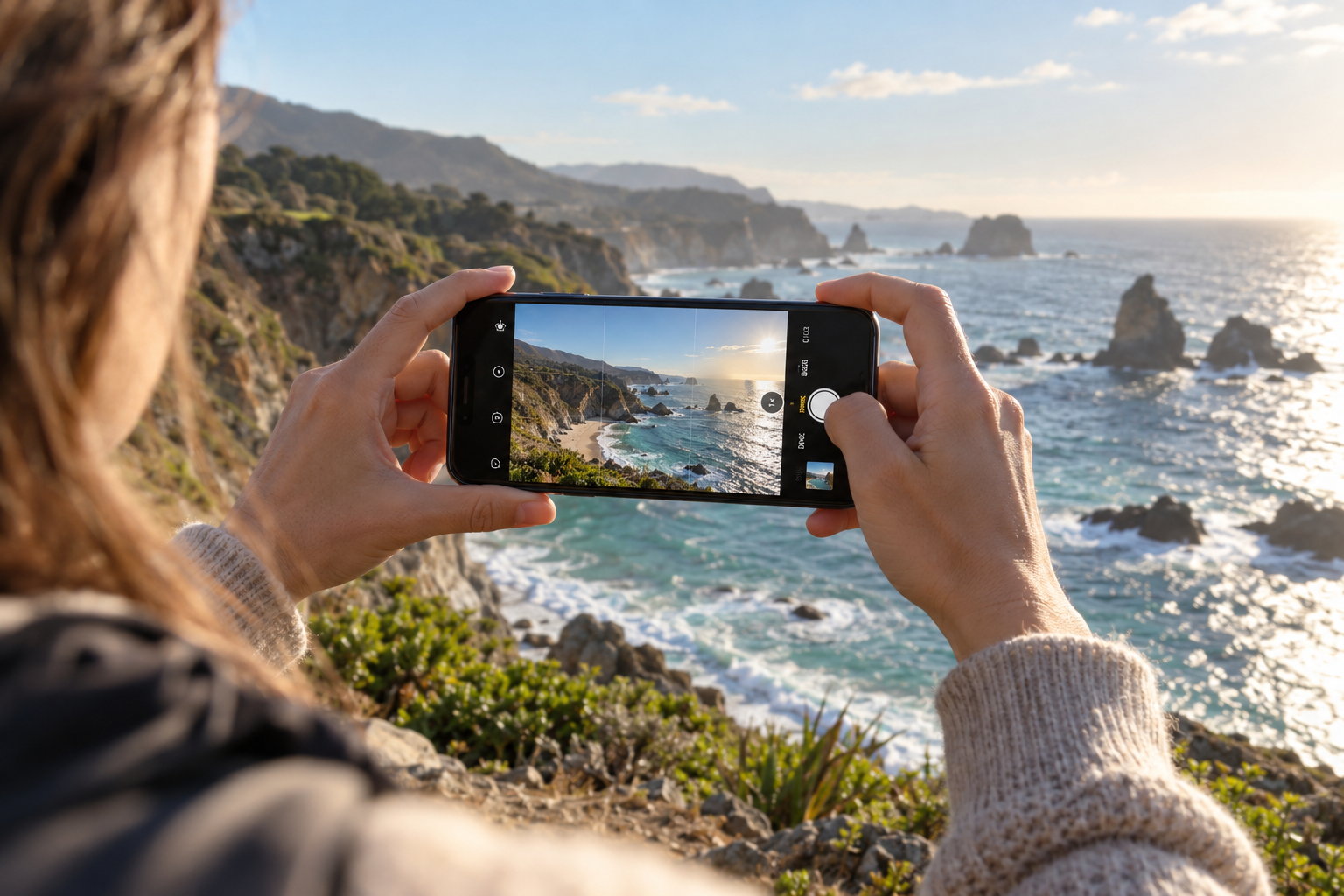
The most useful smartphone photography tips improve the photograph before an app applies its finishing touches. Clean optics, a deliberate viewpoint, suitable light, and a steady hold give your phone better information to work with.
You do not need a new model to practice these habits. Camera menus and available features differ between iPhone, Samsung Galaxy, and other Android devices, so treat the controls below as functions to look for rather than identical buttons on every phone.
Table of Contents
Smartphone Photography Tips for a Better Starting Routine
Clean the camera glass gently with a suitable microfiber cloth. Open the main camera in ordinary Photo mode. Find one clear subject, look for a simple background, and hold the phone with both hands. Tap the subject when you want to influence focus or metering, then adjust brightness if the preview needs it.
Take a second version from a different position before changing filters. Small changes in distance and angle often make a bigger difference than a new camera app. These smartphone photography tips work best when you compare one change at a time, so you can see what actually improves the image.
1. Check the lens before blaming the camera
Fingerprints can reduce contrast and create streaks around lights. Inspect the camera glass in good light and clean it carefully; remove loose grit before rubbing. Also check that a case or lens accessory is not partly covering the camera.
If every photograph still looks hazy, compare images in daylight without accessories. A dirty lens is one possible cause, not an explanation for every soft image. Missed focus, movement, and aggressive processing can produce different problems.
2. Start with the main camera
The main rear camera is often a useful baseline, especially when light is limited. Additional ultrawide or telephoto cameras may have different sensors, apertures, and focusing capabilities. Compare them in the conditions you actually use instead of assuming they all deliver the same quality.
Zoom labels can refer to optical cameras, sensor crops, digital processing, or a combination. Some phones also switch cameras automatically. Use the available fixed choices as experiments and inspect detail rather than treating every magnification label as an optical guarantee.
3. Move thoughtfully instead of pinching endlessly
Heavy digital zoom can reduce usable detail. When it is practical and safe, changing position may give a clearer subject. But moving closer also changes perspective, and approaching a face too closely can exaggerate near features.
For a distant subject, take a moderately framed picture and compare a crop later. Cropping does not create extra detail; it simply gives you control over the final framing. For portraits, step back far enough for natural proportions and choose the camera or crop that fits your intended composition.
4. Put focus on the subject and check exposure
On many phones, tapping a subject influences focus and exposure. A brightness slider or exposure control can then lighten or darken the image. Locking focus or exposure is useful when reframing a stationary setup, but the exact gesture and available controls vary.
If a bright sky loses detail, reduce brightness and see whether the subject remains usable. If a face becomes too dark, change the light or composition instead of expecting one slider to solve an extreme contrast problem. Check the saved photograph, because the processed result may differ from the live preview.
5. Find useful light before choosing a mode
Indoors, bring your subject near indirect window light. Outdoors, try open shade for a face or low side light for texture. Midday sunlight can work for strong shapes and bold shadows, so choose a subject that suits it.
Avoid mixing several very different light colors unless that is intentional. For a food photograph, a window and a simple background may be easier to control than overhead lights from several directions. Turn off a conflicting lamp when appropriate and compare the result.
6. Use the grid to organize the frame
A grid helps keep a horizon straight and compare the space around your subject. Place the subject off-center for one image, then try a centered version. Symmetry and reflections often benefit from central placement.
Check the edges for chopped objects and bright distractions. Lowering the phone can emphasize a foreground; raising it can simplify an untidy table. Rotate between vertical and horizontal framing when the subject allows. You may need both for different uses, but each composition should feel intentional.
7. Keep the phone steady through capture
Support the phone with both hands, tuck your elbows comfortably, and press the shutter gently. Do not immediately drop the phone after tapping: some computational modes continue capturing frames. Follow any on-screen progress indicator.
A timer and stable support can help with static scenes. They will not freeze a moving child or pet. If the subject moves, prioritize more light and an ordinary photo or action-oriented mode rather than assuming the longest night capture produces the best result.

8. Use Portrait mode where it helps
Portrait mode often estimates subject boundaries and adds background blur computationally. It can work well with a clear separation between the person and the surroundings. Hair, glasses, transparent objects, and complicated edges may reveal mistakes.
Make an ordinary Photo-mode version as well. If blur strength can be adjusted afterward, keep it believable and inspect edges around the face and shoulders. Strong artificial blur cannot fix awkward lighting or an uncomfortable shooting distance. For light and posing, see our portrait photography guide.
9. Understand the limits of Night mode
Night modes commonly combine information from multiple captured frames. Supported options depend on the phone, camera, and software. Keep the device steady and allow the capture to finish. A secure support can be useful for an unmoving scene.
People, leaves, traffic, and waves may move during capture. Inspect them for blur or blending artifacts. A brighter final image is not necessarily a better one if the main subject loses shape. For moving people, try a brighter location and a shorter ordinary capture first.
For model-specific instructions on supported iPhones, see Apple’s guide to using Night mode. Android controls vary, so check the guide for your own model.
10. Let HDR help without expecting miracles
Many phones automatically combine exposures or apply local tone adjustments to manage contrast. There may be no simple HDR switch. The process can preserve a bright sky while lifting a shaded subject, but motion and extreme contrast remain challenges.
Look for halos, flat-looking faces, or inconsistent movement. Sometimes turning the camera away from a bright window or waiting for a person to stop is more effective than adjusting processing options. Keep the saved result believable rather than aiming to make every shadow as bright as daylight.
11. Choose resolution and file format for your use
Maximum-resolution modes can create larger files and may behave differently in low light or with movement. Test them in good conditions and compare actual detail at the same display size. A larger pixel count is not proof of a better photograph.
RAW options, where available, offer a different editing workflow and may require more storage. Standard JPEG or HEIF files are convenient for everyday use. Before publishing on a website, export a compatible, appropriately sized file rather than uploading an unnecessarily large original.
12. Edit gently and keep the original
Begin with straightening, cropping, and white balance. Adjust overall brightness, then refine highlights and shadows. Avoid pushing sharpness so far that edges develop bright outlines, or applying noise reduction until textures look painted.
Compare before and after at a normal viewing size. Keep the original and export a separate version. When sharing, use a transfer method that preserves the quality you need; messaging apps may compress images. Check the delivered file if the photograph is intended for print or a website.
Practice These Smartphone Photography Tips in 10 Minutes
Choose one object near a window. Make three photographs from different heights while keeping the light similar. Select the strongest viewpoint, then compare a tighter and a wider composition. Finally, adjust exposure slightly in both directions and compare the saved results.
Repeat the exercise outdoors with a safe, stationary subject. Choose your favorite image for its light and composition before examining tiny details. Write down one habit to repeat the next time you open the camera. Return to these smartphone photography tips when a picture disappoints you and identify whether light, focus, movement, or framing needs attention.
Frequently asked questions
Are these tips useful on Samsung and iPhone?
Yes. Light, composition, stability, and timing apply to both. The location and behavior of controls depend on the model and software version, so use the device’s own guide for exact steps.
Should I always use Portrait mode for a person?
No. Normal Photo mode can look more natural when the background matters or the blur effect struggles with edges. Make both versions when the moment allows.
Why are indoor photos blurry?
The phone may need a longer capture in limited light, while your hands or subject move. Add useful light, hold steadily, and inspect where the blur occurs. Our guide to How to Take Sharp Photos explains the main causes. For a broader learning routine, read Best Photography Tips for Beginners.
4 thoughts on “Smartphone Photography Tips for Better Everyday Photos”