
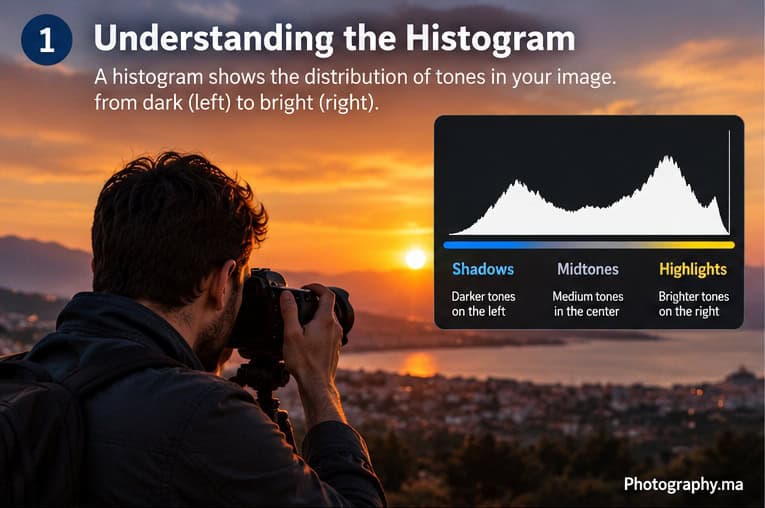
A camera histogram can look technical at first, but learning how to read a camera histogram is one of the easiest ways to evaluate exposure more reliably. It shows how the tones in your image are distributed from dark to bright. Learning to read it gives you a more dependable exposure check than judging only by the rear screen, especially in bright sunlight, at night, or in high-contrast scenes.
The goal is not to force every photograph into one “perfect” histogram shape. A night photograph should naturally contain many dark tones; a snow scene should naturally contain many bright tones. What matters is whether important detail is being lost and whether the exposure matches your intention.
This guide focuses on the practical question: what should you look for on the histogram, and what should you change when it warns you about a problem?
What Does a Camera Histogram Show?
A brightness histogram is a graph of tonal distribution. The horizontal axis runs from darker tones on the left to brighter tones on the right. The vertical height indicates how many pixels fall around each brightness level. A tall peak does not automatically mean something is wrong; it simply means many pixels have a similar brightness.
Nikon describes the histogram as a graphic representation of tonal range and recommends it as a precise exposure check. See Nikon’s official histogram guide.
Think of the graph in three broad zones: shadows on the left, midtones around the middle, and highlights on the right. These are useful labels, not rigid boundaries.
The Most Important Rule: There Is No Perfect Histogram
Beginners often hear that a good histogram should form a smooth mountain in the center. That is misleading. The correct shape depends on the scene.
- A dark night scene can legitimately lean strongly left.
- A bright snow scene can legitimately lean strongly right.
- A low-contrast portrait may cluster around the middle.
- A high-contrast sunset may spread across much of the graph.
Instead of asking whether the histogram looks balanced, ask whether important shadows or highlights are being pushed beyond the range you want to preserve.
How to Read the Left Side: Shadows
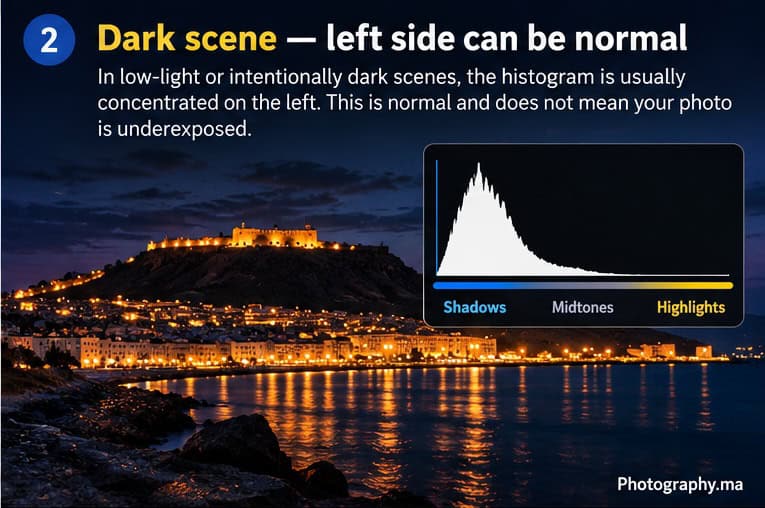
The left side represents the darkest tones. A large amount of information on the left is normal when the scene itself contains lots of darkness. A night cityscape, black background or silhouette should not be brightened simply to move the graph toward the center.
The warning sign is important shadow detail being crushed at the extreme left. If the histogram is piled against the left edge and the subject contains dark detail you need, the exposure may be too low for your intention.
Possible response: increase exposure, use positive exposure compensation in an automatic or semi-automatic mode, open the aperture, slow the shutter speed, or raise ISO as appropriate. Which control you change depends on motion, depth of field and your shooting mode.
How to Read the Right Side: Highlights
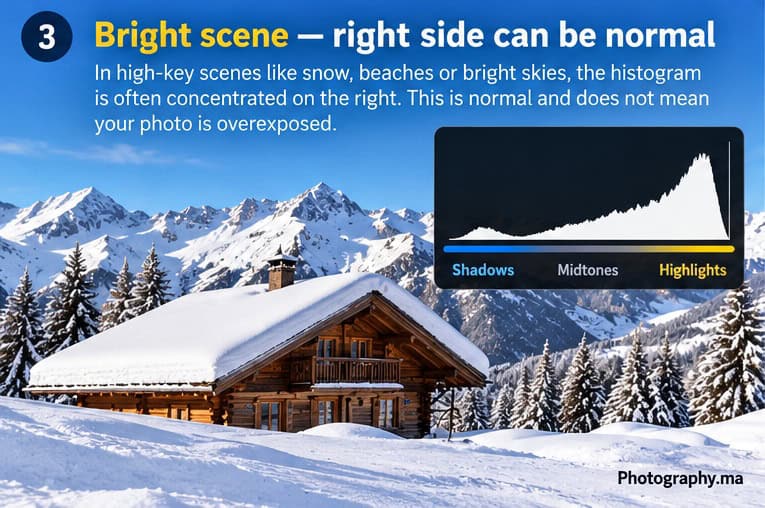
The right side represents brighter tones. A histogram concentrated toward the right is not automatically overexposed. Snow, white walls, bright beaches and high-key images naturally contain many bright pixels.
The real concern is clipping: important highlight information reaching the extreme right with no recoverable tonal detail in those areas. Specular reflections, lamps and the sun itself may clip and still be acceptable; a face, wedding dress or cloud texture may be much more important to protect.
What Highlight Clipping Looks Like
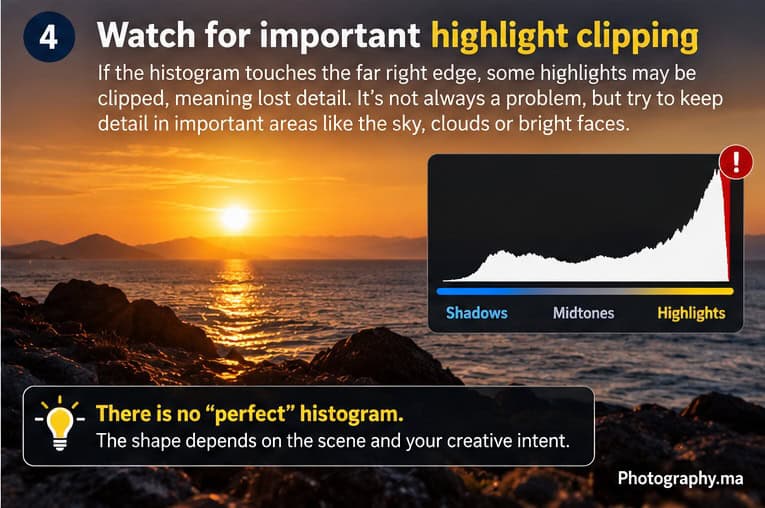
When a strong mass runs into the far-right edge, some highlights may be clipped. Nikon also recommends highlight warnings—often called “blinkies”—as a companion to the histogram because they show where overexposed areas occur in the image.
If important highlights are clipping, reduce exposure and check again. In Aperture Priority or another automatic exposure mode, negative exposure compensation is often the quickest fix. In Manual mode, adjust aperture, shutter speed or ISO according to what the scene allows.
Histogram vs Rear-Screen Brightness
The rear screen is useful for composition and a general visual check, but its apparent brightness changes with the display setting and ambient light. A photo can look dark outdoors simply because sunlight makes the screen hard to see. The histogram provides a more objective view of tonal distribution.
This does not mean the histogram replaces the image preview. Use both: look at the photograph to judge the visual result, then use the histogram and highlight warnings to verify whether important tones are being lost.
Brightness Histogram vs RGB Histogram
Many cameras offer both a brightness histogram and separate red, green and blue channel histograms. The brightness histogram is the best starting point for beginners because it answers the main exposure question quickly.
RGB histograms become useful when one color channel clips before the overall brightness display makes the problem obvious. This can happen with intensely saturated subjects such as red flowers, stage lighting or neon signs.
Canon documentation describes the RGB display as separate distributions for the red, green and blue primary colors. Nikon likewise notes that several cameras can display RGB histograms. Camera implementations differ, so consult the manual for your model if you want to use channel-specific warnings.
A Simple Histogram Workflow in the Field
- Compose the photograph and take a test shot, or enable a live histogram if your camera supports it.
- Look at the photograph first: is the subject rendered the way you want?
- Check the right edge for important highlight clipping.
- Check the left edge if important shadow detail matters.
- If exposure needs correction, change only what the scene requires.
- Take another frame and compare the image, histogram and highlight warnings.
Do not spend every shot staring at the graph. Nikon specifically notes that selective use is practical: histograms are especially useful in difficult light, scenes with deep shadows and bright highlights, or repeated shots where consistent exposure matters.
What Should You Change When the Histogram Shows a Problem?
| What you see | What it may mean | Practical response |
| Important detail clipped at right | Exposure too bright for those highlights | Reduce exposure / use −EV |
| Important detail crushed at left | Exposure too dark for those shadows | Increase exposure / use +EV |
| Histogram mostly left in a night scene | Often normal | Judge subject and intended mood |
| Histogram mostly right in snow | Often normal | Protect important white detail; don’t force it to center |
| Both ends heavily clipped | Scene may exceed usable dynamic range | Choose priority, change light, bracket or consider blending |
How Exposure Compensation Moves the Histogram
On cameras and modes where exposure compensation changes the automatic exposure, positive compensation generally moves tonal distribution toward the right, while negative compensation moves it toward the left. Nikon documents this relationship, and Sony’s current help guides likewise note that the histogram changes with exposure compensation.
For the practical +EV / −EV workflow, use Photography.ma’s Exposure Compensation Explained guide.
Histogram and Metering Are Different Tools
Metering helps the camera decide exposure; the histogram reports the tonal distribution of the image or preview being analyzed. They complement each other but do not perform the same job.
If Matrix, Center-Weighted and Spot still feel unclear, read Photography.ma’s Metering Modes Explained guide.
Why RAW and JPEG Histograms Can Differ
A camera histogram is generally based on the camera’s rendered preview rather than a direct visualization of untouched RAW sensor data. Picture style, contrast, white balance and other processing choices can therefore influence what the in-camera histogram shows. Treat it as an excellent exposure guide, not a laboratory measurement of RAW headroom.
This also explains why an image that appears clipped on the camera can sometimes retain some recoverable RAW information. Do not rely on that possibility for critical highlights; use the histogram conservatively when detail matters.
Five Common Histogram Mistakes
- Trying to center every histogram. Scene brightness should determine the shape.
- Assuming any contact with the right edge ruins the photograph. Ask what is clipping and whether it matters.
- Ignoring individual color-channel clipping in intensely saturated scenes.
- Using the histogram without looking at the photograph. Tonal data cannot decide your creative intention.
- Changing exposure when the real problem is motion blur, missed focus or poor composition. The histogram only describes tones.
A 10-Minute Practice Exercise
Photograph three very different scenes: something mostly dark, something with ordinary midtones, and something mostly bright.
- Take each photo using your normal metering mode.
- Review the image and predict where its histogram should sit before displaying the graph.
- Display the histogram and compare it with your prediction.
- Make one frame at −1 EV and one at +1 EV.
- Watch how the distribution shifts and note which important tones begin to clip.
- Return to the exposure that best matches the scene rather than the histogram that looks most centered.
Quick Decision Guide
- Dark scene + left-heavy histogram: often normal.
- Bright scene + right-heavy histogram: often normal.
- Important highlights hitting the right edge: reduce exposure if you need that detail.
- Important shadows hitting the left edge: increase exposure if you need that detail.
- Both ends clipped: the scene may contain more contrast than one exposure can retain.
- Unsure: check the actual subject, highlight warnings and creative intent before changing anything.
FAQ
Should a histogram touch the right edge?
It can. The key question is whether important highlight detail is clipped. Tiny specular reflections or the sun may be allowed to clip; textured clouds or skin may deserve more protection.
Is a left-heavy histogram always underexposed?
No. A night or low-key photograph should naturally contain many dark pixels. Underexposure is a problem when tones you intended to preserve are pushed into unusable darkness.
Can I use the histogram before taking the photo?
Many mirrorless cameras and some live-view implementations can display a live histogram while composing. Exact behavior and accuracy vary by model and shooting conditions, so check your camera manual.
Is the histogram more accurate than the camera screen?
It is more objective for evaluating tonal distribution, while the image preview remains essential for judging the photograph itself. Use them together.
Do I need the RGB histogram as a beginner?
Not immediately. Learn the brightness histogram first. Add RGB histograms when you want to identify clipping in individual color channels.
Final Takeaway
A camera histogram is not a target shape. It is a diagnostic tool. Left means darker tones, right means brighter tones, and the height shows how many pixels occupy those levels. Learn to watch the edges for detail that matters, accept that dark and bright scenes naturally produce different shapes, and use exposure compensation or manual exposure controls only when the photograph—not the graph—needs a change.
3 thoughts on “How to Read a Camera Histogram: A Beginner’s Guide”
Comments are closed.